Library
Library is the main book list screen in Readium. It is where you collect books, find them again, organize them, and open the detail page for each book.
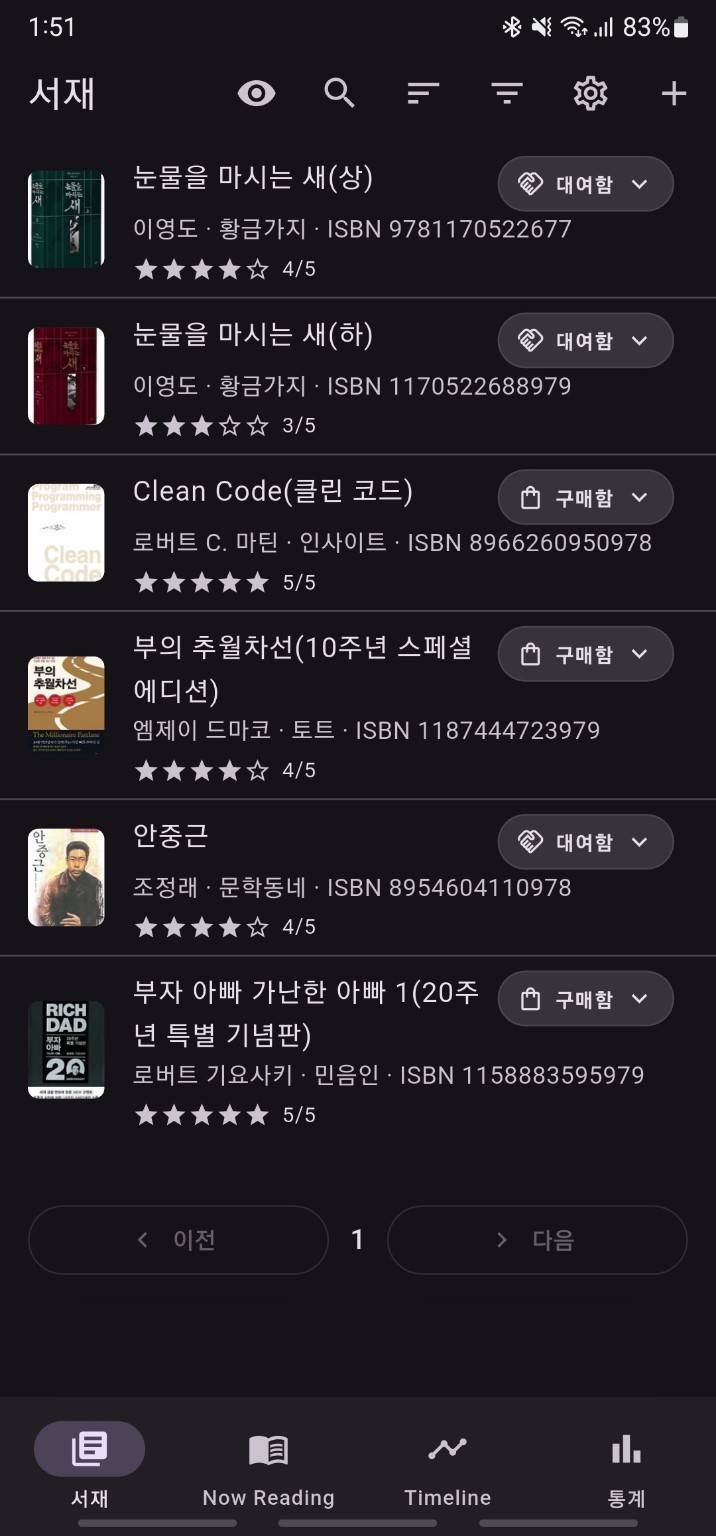
What you can do in Library
- add books
- toggle hidden books
- search by title
- change sorting
- apply filters
- open a book detail page
Adding books
Tap the + button in the top right to open the external catalog search screen. When you choose a result, the book is added to your Library.
If the app detects that the same book is already registered, it can open the existing detail page instead of creating a duplicate.
What appears in the list
Each list item can show:
- cover thumbnail
- title
- author and publisher
- ISBN
- book status
- rating
Hidden books appear dimmed and are labeled as hidden.
Book status
Library and the book detail page let you manage ownership-style status values.
None: no special statusPurchased: ownedBorrowed: borrowedReturned: returnedSold: sold
These are management states for the book itself and are separate from reading sessions.
Search, sort, and filter
The top action buttons help you manage a large Library.
Search: narrow the list by titleSort: recent activity, added order, or titleFilter: filter by book status and minimum ratingShow hidden: include or exclude hidden books
If the list is long, Library uses page-based navigation.
Hiding and restoring books
From the book detail menu you can remove a book from the visible Library. In the current app behavior, this becomes a hidden state rather than a permanent hard delete from the UI.
If hidden books are visible, you can open the hidden book again and choose Restore to Library.